
Navigate Formulas and Trace Precedents in Excel
Tracing precedents in Excel can quickly get chaotic. Excel formulas often involve many references and reviewing them pushes you across worksheets and sometimes even into other workbooks. Doing that by hand is slow and error-prone.
The Explore Formula tool fixes this in one click. It lists every cell link in a clear, clickable window, so you can follow the data path, spot errors quickly, and share workbooks that simply work.
Read on to see how this free tool makes tracing precedents in Microsoft Excel quick and painless.
Precedents are cells that provide data for a formula.
Tracing precedents shows you which cells feed into your calculations, making it easier to understand and check your formulas.
Dependents are cells that use (i.e., are dependent on) the selected cell's value.
Tracing dependents reveals which parts of your spreadsheet would be affected if you change the selected cell, helping you avoid unexpected problems.
Excel’s built-in functionality provides a handful of features for finding precedents and formula auditing.
How to Trace Precedents with Excel's Built-In Precedent Arrows
Access the trace precedents tool:
Select the cell containing your formula.
Go to the Formulas tab on the ribbon.
Click Trace Precedents in the Formula Auditing group.
Understand the different arrow types:
Blue arrows: Normal cell references within the same worksheet.
Red arrows: Cells that contain errors or problematic references.
Dotted black arrows: References to cells on other worksheets or workbooks.
Navigate between worksheets:
Double-click on any dotted arrow to see a list of off-sheet references.
Select any reference from the list to jump directly to that cell.
Remove arrows when finished:
Click Remove Arrows in the Formula Auditing group.
Or use the Remove Precedent Arrows option to clear only precedent arrows.
How to Jump to Referenced Cells in Excel Formulas
Double-click method: Double-click on any formula cell to jump directly to its first precedent cell.
Note: This only works if you've disabled "Allow editing directly in cells" (File > Options > Advanced).
Use F5 followed by Enter to return to your original formula cell.
How to Select Precedents in Excel Using Go To Dialog
Select your formula cell.
Press F5 or CTRL + G to open the Go To dialog.
Click Special.
Select Precedents.
Choose Direct only or All levels depending on your needs.
Click OK to select all cells that feed into your formula.
Keyboard Shortcuts to Trace Precedents
Select all precedents without arrows:
Press CTRL + [ to select the first precedent.
Use CTRL + [ repeatedly to navigate through multiple reference levels.
Select all dependents without arrows:
Press CTRL + ] to select all cells that depend on the active cell.
This helps you see what formulas would be affected by changes.
Limitations of Excel’s Tracing Tools:
The interface is inconvenient.
Only traces one formula cell at a time.
Arrows can overlap in dense sheets, making them hard to follow.
Cannot trace inputs from PivotTables, chart series, or closed workbooks.
In the next section, we present a tool that addresses these limitations.
The Explore Formula window helps you break down complex formulas step by step. You can identify each precedent cell and confirm the roles and location of every reference.
This is similar to using trace precedents button within Excel’s formulas tab, but the Explore Formula tool provides an enhanced and more direct view of your formula dependencies combined with a more convenient way of navigating back and forth.
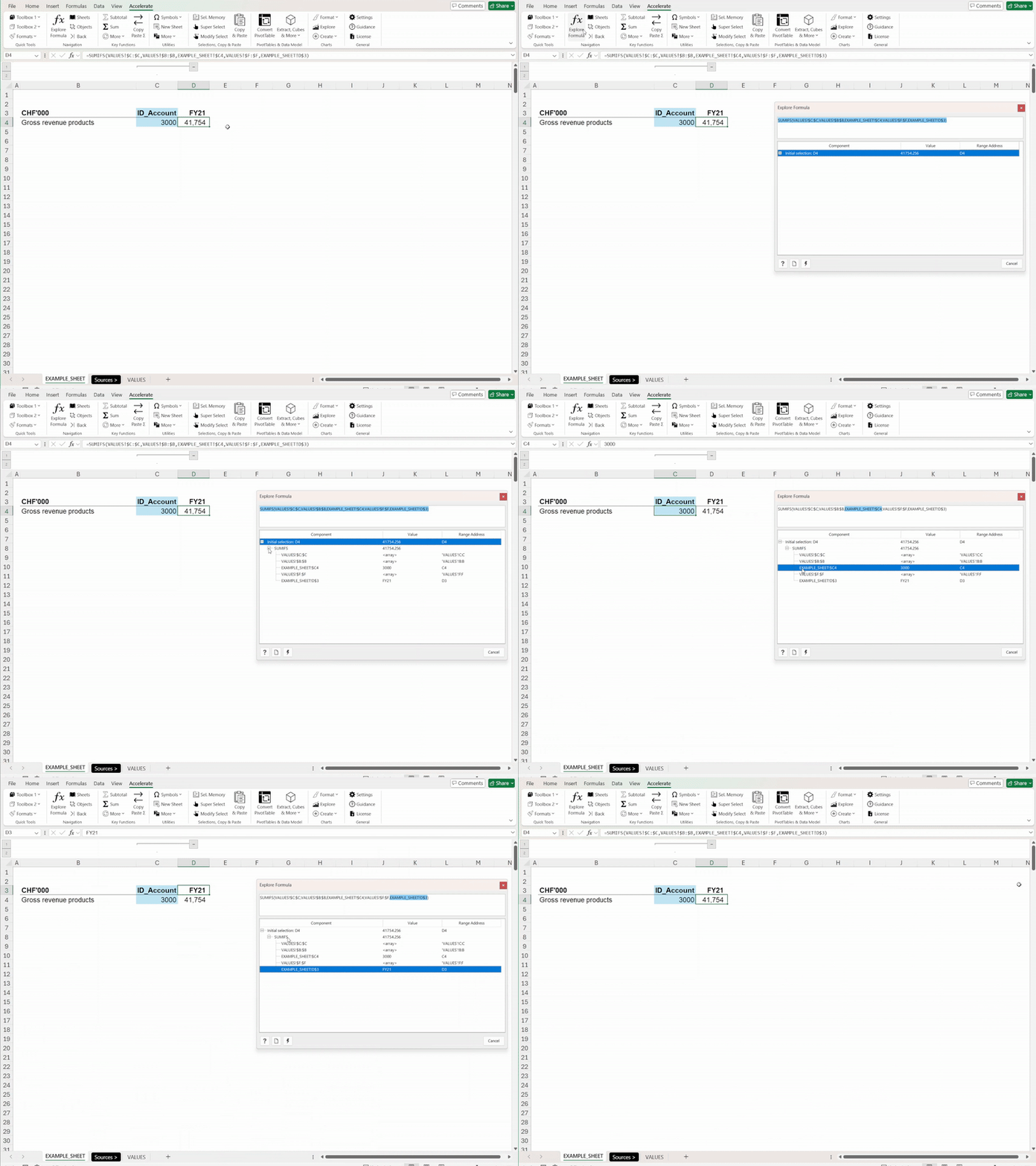
See how Explore Formula traces precedents across sheets, simplifying navigation and auditing of complex Excel formulas.
Explore Formula is a navigation and auditing tool inside the Accelerate Excel toolbar. The toolbar is an Excel add-in, making heavy spreadsheet users work faster.
With Explore Formula you can:
See a full breakdown of any formula in the selected cell.
Find all of its precedent cells, even across worksheets and workbooks.
Navigate through formulas using simple keyboard shortcuts.
Audit formulas in Excel more conveniently.
This formula navigator is essential when you are auditing a financial model, reviewing data, or trying to understand how a calculation works.
To launch Explore Formula, follow these simple steps:
Select the active cell that contains the formula you want to analyze.
Click the Explore Formula button in the toolbar (or use the keyboard shortcut: Alt → G → F).
Once opened, the Explore Formula interface provides a structured and readable layout, making it much easier to understand formulas compared to Excel’s native formula auditing features like the trace precedents button or dependent arrows.

The Explore Formula tool within Accelerate Excel offers a better alternative to Excel’s built-in trace precedents arrows.
The Explore Formula interface is designed to make formula auditing simple and easy to understand. Below is a short tutorial on how it works:
View Formulas Clearly: The main formula appears in the formula bar at the top. You can break it down by clicking the plus icons or pressing the right arrow key, expanding the formula step by step.
Track Precedent Cells: Quickly follow formulas by selecting any component of the formula. The tool highlights the chosen part and navigates you directly to its source, even across different Excel files or workbooks.
Understand Each Component: For every part of the formula, see its value and range address. This helps you identify how each piece contributes to the overall calculation.
Navigate with Ease: Use the up and down arrow keys or click within the formula box to move between different components.
The layout helps anyone follow cell links and see how the current formula relies on other cells.
Note: You can also drill down into a selected reference in the Explore Formula dialog by pressing the right arrow key. This triggers a deeper look into the data flow, offering an even more thorough way to use trace precedents and uncover all related references across multiple sheets or workbooks.

Explore Formula Interface: This example demonstrates how Explore Formula breaks down an INDEX/MATCH formula into its components, allowing you to navigate between precedent cell references for efficient formula auditing.
We decided to offer this formula auditing tool for free for the following reasons:
Many existing products: There are already various trace precedents tools that extend the built-in trace precedents and trace dependents functionality. Some are better, some are worse, and most cost money. By offering Explore Formula for free, we hope you will try it and appreciate the benefits of a third-party add-in.
Door opener: We regard the free Explore Formula tool as a door opener that might spark your interest in the other premium features of Accelerate Excel.
No automatic fees: After downloading, you get a 14-day trial of the premium version. After those 14 days, there is no automatic charge, subscription, or commitment. You would need to actively purchase a license if you want to continue using premium features.
If you would like the premium version of the Accelerate Excel toolbar but cannot afford it, feel free to contact us. We are generally open to giving free annual licenses in return for bug reports or tool feedback.
Understanding how to find cell references in Excel is essential for anyone who manipulates complex formulas, builds financial models, or manages large dashboards.
Explore Formula lists every range or cell reference and value, providing you with a quick navigation utility. It is free, easy to set up, and perfect to make your Excel work more efficient and convenient.
Accelerate Excel’s Explore Formula maps the inputs feeding your selected cell, covering the standard use case that most users need 90 percent of the time.
However, there are scenarios in Microsoft Excel where you might want to expand your formula auditing scope:
Trace Dependents: Instead of seeing which precedent cells feed the active cell, you may want to identify dependent cells referencing your current cell or range.
Trace Precedents and Trace Dependents for Multiple Cells or a Range: Sometimes you need an overview of the entire selection, rather than just a single selected cell.
Trace Precedents and Trace Dependents for Entire Worksheets: You may want to understand worksheet-level dependencies, which often include objects like charts and hyperlinks. Excel’s built-in tracing tools usually do not cover these elements.
The add-in offers auditing tools that address all these needs, going beyond the limitations of Excel’s built-in trace precedents and trace dependents.
For more details, see: Trace Precedents & Trace Dependents in Excel.
How do I trace precedents across multiple sheets?
Excel identifies off-sheet references with dotted arrows; double-click an arrow to open the full list. For a quicker overview, open Explore Formula. The dialog shows every precedent in one window, including links in other worksheets and external workbooks.
What is the most efficient way to audit Excel formulas?
Press Alt → G → F to launch Explore Formula. The tool expands the formula into an indented tree, displays each component’s value, and lets you jump to every source cell with a single click.
Can Excel display all cell references simultaneously?
No. Native Excel traces precedents only for the active cell. Explore Formula shows the complete reference hierarchy at once, including cross-sheet and external links.
Why are precedent arrows not visible?
Check three settings: disable “Allow editing directly in cells” (File › Options › Advanced), confirm that objects are visible (Alt + F10 toggles them), and ensure the worksheet is not protected. The arrows reappear after these options are corrected.
Is there a free tool for tracing precedents?
Yes. The Explore Formula module inside the Accelerate Excel add-in remains free after the 14-day trial of premium features ends.
How do I install Accelerate Excel?
1. Download. Visit the download page, request the installer link, and retrieve the email that follows.
2. Install. Run the .msi; no administrator rights are required.
3. Launch. Open Excel and look for the new Accelerate Excel tab. All features are active during the 14-day trial period.
4. License. When the trial ends, enter a purchased key to keep premium tools; core features such as Explore Formula stay free.
5. Security. Accelerate Excel runs locally and never transmits workbook data. Refer to the installation guide for handling any Trust Center prompts.