
Excel SUBTOTAL Function: the Smarter SUM
If you rely on the SUM function for every subtotal and grand total row, you are missing out on easy efficiency gains.
Unlike the SUM function, SUBTOTAL works independently: you can add or delete other SUBTOTAL rows without touching existing formulas.
The SUBTOTAL function also handles hidden rows, hidden cells, and filtered data, making SUBTOTAL the more versatile, low-maintenance choice.
What is the SUBTOTAL Function?
The SUBTOTAL function returns a subtotal for a range of cells.
Unlike SUM or AVERAGE functions, it recognizes filters and nested subtotals. It can omit hidden values (after you hide rows) and it is Excel’s default function for adding up numbers in Excel tables.
Syntax
=SUBTOTAL(function_num,ref1,[ref2],...)
Function_num indicates the function type to be applied. Using the num argument 9 performs the same calculation as the SUM function.
ref1 specifies the cell range to which the function applies. For SUBTOTAL(9,...), this reference determines which cells will be included in the sum calculation.
Key Features
Ignores other SUBTOTALs – Higher-level SUBTOTALS skip lower-level ones, preventing double counting.
Many functions in one – First argument chooses SUM, AVERAGE, COUNT, MAX, etc.
Works with filtered data – Includes only visible cells when a filter is applied.
Optional hidden-row control – Function numbers 109, 110, … let you exclude manually hidden rows (e.g.,
=SUBTOTAL(109, …)is SUM of visible cells only).
Why SUBTOTAL Beats SUM in Finance
In deal models, trial balance data analysis, and other finance dashboards, SUBTOTAL often replaces SUM because it is easier to maintain:
Independent formulas – Each SUBTOTAL stands alone; insert or delete subtotal rows without repairing other SUBTOTAL formulas.
No range rewiring – Models evolve—rows shift, managers add layers. A SUM range breaks; a SUBTOTAL keeps working.

Figure 1 – Overview: P&L totals calculated with SUM (left) versus SUBTOTAL (right).
The next two examples show why.
Example 1: Delete a Subtotal Row
We start with a basic P&L and remove the “Operating Expenses” subtotal row.
Before Row Deletion
Column F uses SUM; column H uses SUBTOTAL. Columns J and K show the formulas behind them.

Example 1 – Before: Both formulas correct prior to deleting the Operating Expenses subtotal row.
After Row Deletion
Delete the row (Shift + Space, then Ctrl + –):
SUM now shows #REF! – its range broke.
SUBTOTAL recalculates automatically.
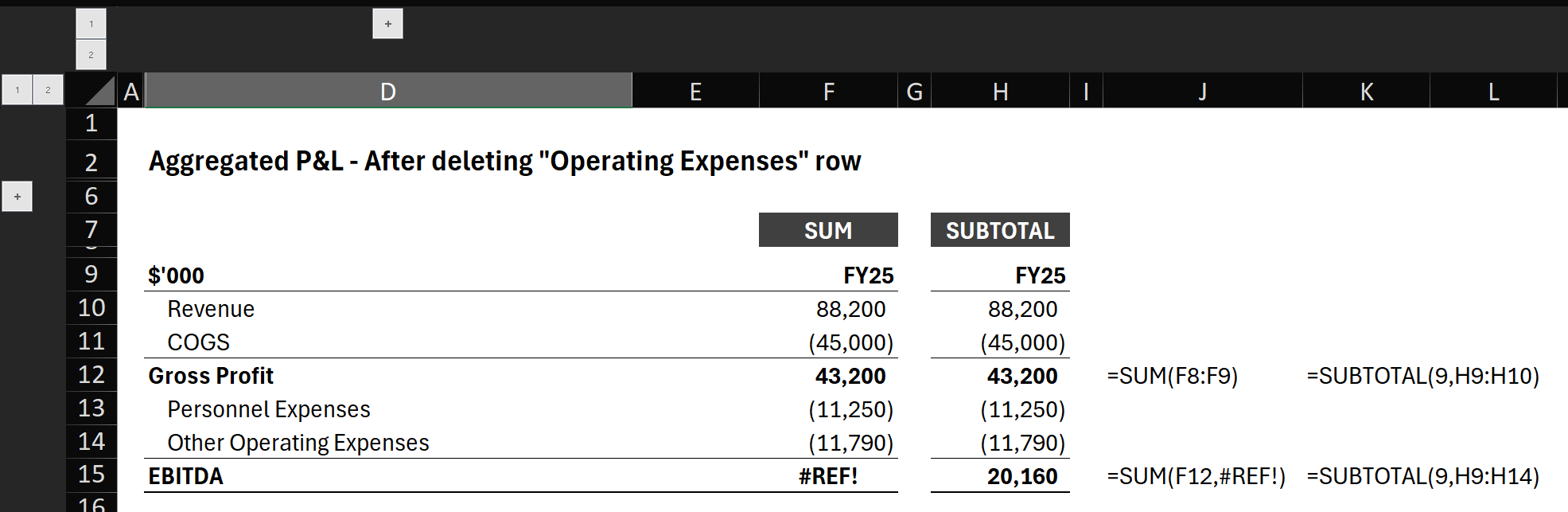
Example 1 – After: Deleting the row breaks the SUM formula (#REF!), but SUBTOTAL updates automatically.
Example 2: Inserting a Subtotal Row
Same P&L, but now we add a subtotal Operating Expenses, grouping Personnel Expenses and Other Operating Expenses.
Before Row Insertion
Totals are correct both the SUM formula and the SUBTOTAL formula.
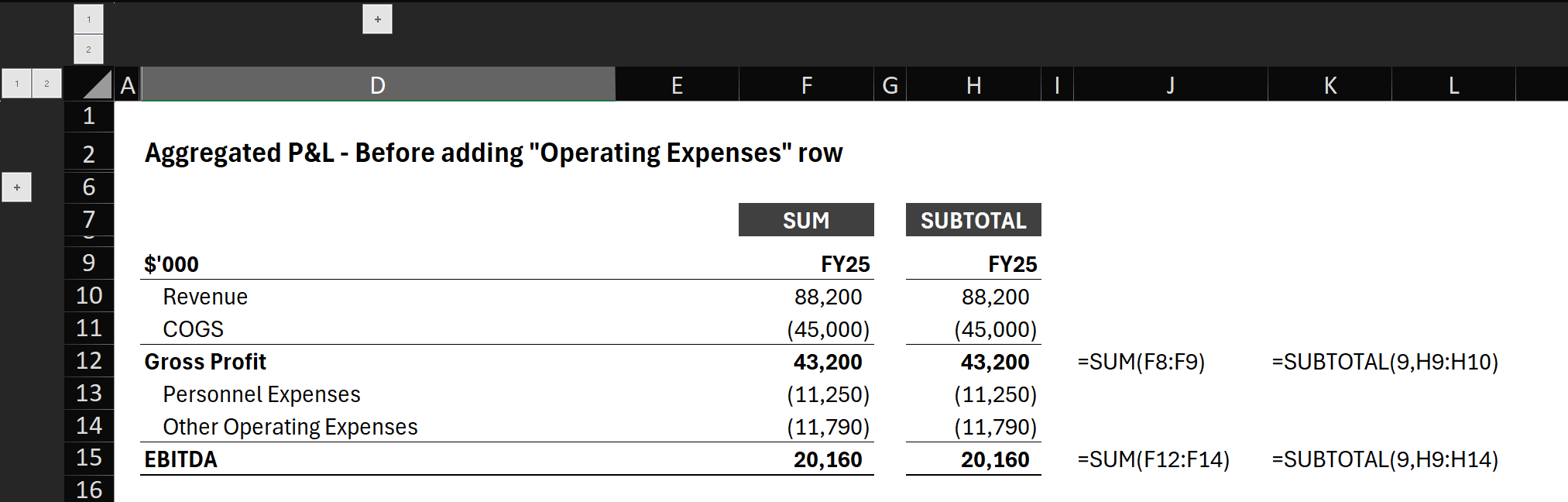
Example 2 – Before: Totals correct before adding the Operating Expenses subtotal row.
We now insert a new row to add Operating Expenses.
Tip: How to insert a subtotal row quickly:
Select row 14 (select any cell on row 14 and press Shift + Space).
Press Ctrl + + to insert a blank row.
Cut the original row 15 (Ctrl + X).
Move up one row and paste insert (Ctrl + +).
Why not insert directly above EBITDA? Doing so would push the EBITDA subtotal down and break its reference. The three-step move keeps the SUBTOTAL formulas intact.
Next, add a SUM formula and a SUBTOTAL formula to the new subtotal row.
After Row Insertion
SUM double-counted and needs fixing.
SUBTOTAL is still accurate—no edits required.
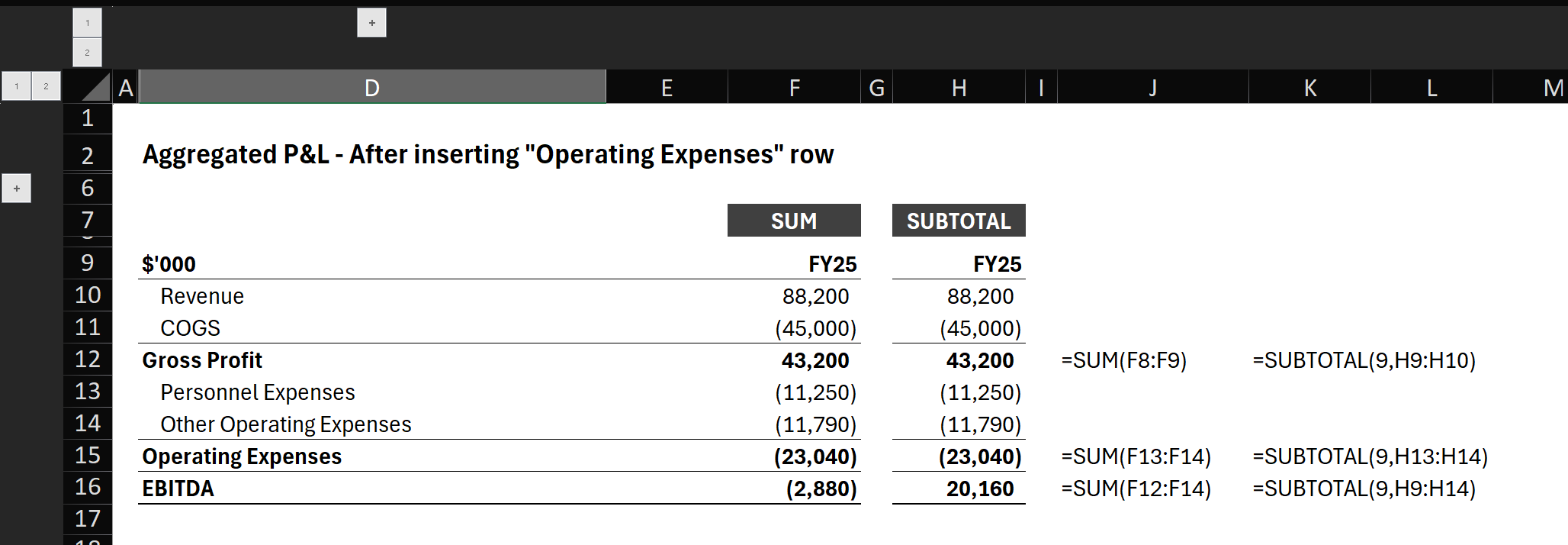
Example 2 – After: Adding the Operating Expenses row causes SUM to double-count; SUBTOTAL stays correct.
The current SUBTOTAL in the Operating Expenses row does not affect the other SUBTOTAL formulas; rows can be inserted or removed without any further adjustments.
Is the SUBTOTAL Function Always Better Than SUM?
Most of the time yes, but consider two points.
Audience familiarity. SUM is what many users expect. If a non-technical client will edit the file, SUM may be safer. If tables will be presented in PowerPoint or shared as hardcoded values, use SUBTOTAL.
Mid-level errors can hide. A faulty intermediate SUBTOTAL can be difficult to detect. However, using SUM doesn't guarantee error-free calculations either. Always verify your totals by cross-checking results, regardless of which function you use.
Accelerate Excel: Productivity Shortcuts
Tired of typing =SUBTOTAL(9, all day?
Accelerate Excel, our Microsoft Excel add-in, provides you a single, specific keyboard shortcut to directly insert SUBTOTAL(9,…).
In addition, the add-in comes with more than 100 formatting and other time-saving utilities to make your Excel life easier.
Included SUBTOTAL features:
SUBTOTAL keyboard shortcut: Select a range, hit the ribbon button or Alt > G > 4, and the add-in inserts a SUBTOTAL function.
Copy-paste SUM or SUBTOTAL only: Avoid Excel’s “non-contiguous selection” error.
Convert SUM to SUBTOTAL and SUBTOTAL to SUM Utility: The usage of SUM vs SUBTOTAL depends on the situation and also preference. The tool lets you flip those Excel formulas in bulk.
Keyboard Shortcut to Directly Insert Excel SUBTOTAL Function
Shortcut to Copy-Paste SUM / SUBTOTAL Formulas
Conclusion
SUBTOTAL functions make your worksheet more flexible. You can add or remove lower-level subtotals and the higher-level total rows keep working. This flexibility makes SUBTOTAL the better value aggregation function. If your models use nested hierarchies or larger datasets, choose SUBTOTAL and skip the maintenance hassle.
FAQ
Can I use AutoSum (Alt + =) to insert SUBTOTAL?
No. AutoSum always inserts SUM, and it switches to SUBTOTAL only in filtered ranges. Excel does not let you change that.
Is there a native shortcut for SUBTOTAL?
No. You need VBA or an add-in such as Accelerate Excel.
What is the difference between SUBTOTAL(9, …) and SUBTOTAL(109, …)?
SUBTOTAL(9, …) sums all rows, hidden and visible. SUBTOTAL(109, …) sums only visible rows and ignores hidden ones.