
Essential Excel Keyboard Shortcuts for M&A and Finance
Microsoft Excel is the key tool in M&A, financial modeling and transaction services. Whether you’re working on financial due diligence (FDD) databooks, building financial models or handling valuations, Excel is where most of the action happens.
In these fast-paced fields, mastering Excel keyboard shortcuts is essential. You'll spend countless hours in Excel and not using keyboard shortcuts is a waste of time and will put you behind the competition.
Here are some crucial Excel keyboard shortcuts that will increase your efficiency and boost your career in the world of deals and M&A.
Navigation & Selection Shortcuts
| Shortcut | Description |
|---|---|
| Ctrl + Arrow Keys | Jump to the edge of your data region. |
| Shift + Arrow Keys | Select cells in the direction of the arrow. |
| Ctrl + Shift + Arrow Keys | Select a range of cells up to the edge of your data. |
| Ctrl + Left-Click (Mouse) | Start a new (sub) selection. You could also use Shift + F8, though using the mouse is often faster. |
| Shift + Left-Click (Mouse) | Select the region between the current selection and the clicked cell. |
| Ctrl + Space | Select an entire column. |
| Shift + Space | Select an entire row. |
| Ctrl + Page Up | Switch to the previous sheet. |
| Ctrl + Page Down | Switch to the next sheet. |
| Ctrl + A | Select the current region. Press twice to select all cells on the sheet. |
| Alt + ; | Select visible cells only. |
| Ctrl + Home | Go to the beginning of your spreadsheet. |
| Ctrl + End | Navigate to the last cell with data. |
| F5 > Enter | Return to the formula after double-clicking to jump to the first reference. |
Copy & Paste Shortcuts
Paste Special is key to efficient Excel work in consulting. After copying (Ctrl + C), don't use Ctrl + V as it pastes everything. Instead, use Alt > E > S to open the Paste Special menu, then choose the option you need:

Excel’s Paste Special menu
| Shortcut | Description |
|---|---|
| Alt > E > S > F | Paste formulas only. |
| Alt > E > S > V | Paste values only. |
| Alt > E > S > T | Paste formats only. |
| Alt > E > S > L | Paste link. |
| Alt > E > S > M | Multiply. |
| Alt > E > S > I | Divide. |
Formatting Shortcuts
| Shortcut | Description |
|---|---|
| Ctrl + B | Bold text. |
| Ctrl + I | Italicize text. |
| Ctrl + U | Underline text. |
| Alt > H > AR | Align right. |
| Alt > H > AL | Align left. |
| Alt > H > E > A | Clear all content in selected cells. |
| Alt > H > E > F | Clear formats of selected cells. |
| Alt > H > H > N | Clear cell background colors. |
Row & Column Shortcuts
| Shortcut | Description |
|---|---|
| Ctrl + + | Insert a new row/column before the selected row/column. Note: Your must select an entire row or column before. |
| Shift + Space, then Shift + Alt + Left Arrow | Ungroup selected rows or columns. |
| Shift + Space, then Shift + Alt + Right Arrow | Group selected rows or columns. |
| Alt > H > O > J | Expand grouped rows or columns (show details). |
| Alt > H > O > H | Collapse grouped rows or columns (hide details). |
Sorting Shortcuts
| Shortcut | Description |
|---|---|
| Alt > A > SA | Sort selected rows in ascending order. |
| Alt > A > SD | Sort selected rows in descending order. |
| Tab | Activate the next cell in the selection. The active cell determines the column by which the rows will be sorted. |
Miscellaneous Shortcuts
| Shortcut | Description |
|---|---|
| Ctrl + G or F5 | Open the Go To dialog box. Press Alt + S to access special cells (e.g., blanks, constants, formulas). |
| Ctrl + F | Find text or data. |
| F4 | Repeat the last action. |
| F2 | Edit the active cell. |
| F4 (inside the formula bar) | Toggle absolute/relative references in a formula. |
| Ctrl + Shift + L | Toggle filters on and off. |
| Alt > H > O > R | Rename the current sheet. |
| Alt > W > F > F | Freeze or unfreeze panes. |
| Alt > W > VG | Add or remove gridlines. |
How Accelerate Excel Enhances Keyboard Shortcuts
Accelerate Excel, our Excel add-in, simplifies your workflow by offering 19 customizable formatting shortcuts via the Formats menu.
One of these is the Total Row format, which you can apply through:
Accelerate Excel ribbon tab: Alt > G > 3 T
Quick Access Toolbar (recommended): Alt > 1 > T
Example of how to apply the 'Total Row' format with keyboard shortcuts
You can tailor these formats to whatever you need (include borders, fonts, colors, cell backgrounds, etc). Once set up, applying all these formats is just a quick keyboard shortcut sequence away.
See below how quickly you can format a profit and loss statement (P&L):
Example of how to quickly format a P&L via Accelerate Excel's Formats menu with keyboard shortcuts
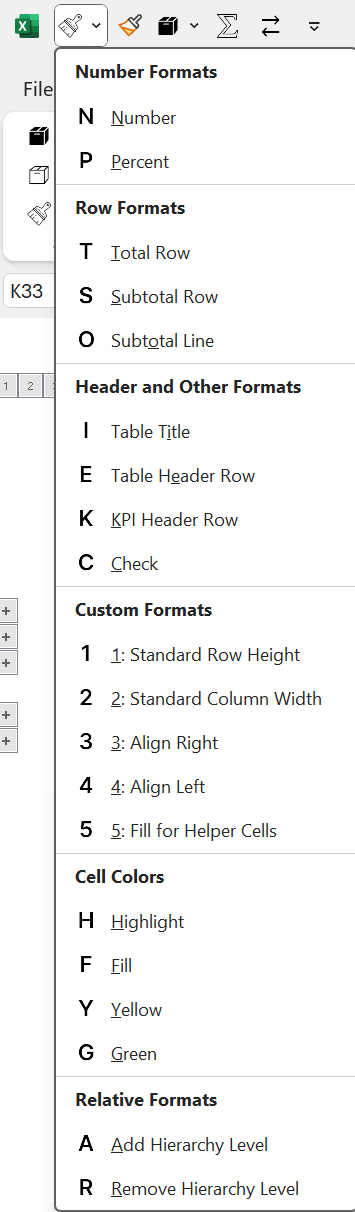
Accelerate Excel’s Formats menu to quickly apply a customizable set of formats to the selection
Conclusion
Excel skills are essential for M&A consultants and investment bankers. Mastering shortcuts is key. Excel keyboard shortcuts not only speed up your work but also free up time to focus on meaningful analysis. Put in the time now to learn them and you'll thank yourself later.
What are your favorite shortcuts? Did we miss any? Leave a comment below!